
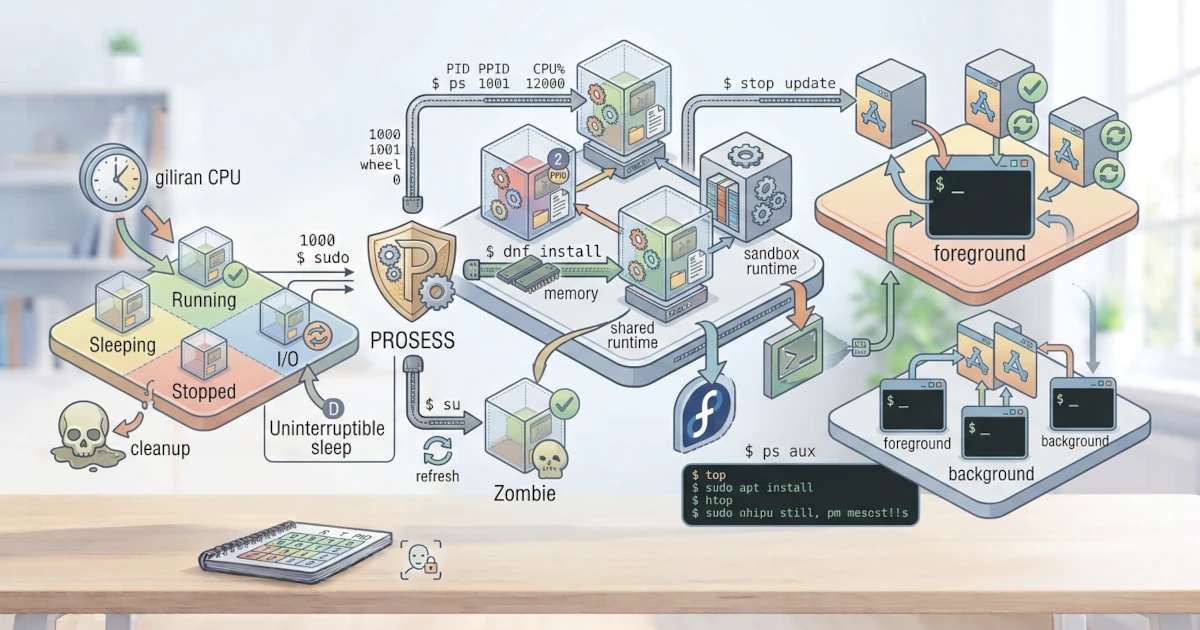
When you run a program on Linux, the system creates something called a process. A process is the core of how Linux runs many tasks simultaneously, whether they are graphical applications, terminal commands, or services running in the background. Understanding processes helps you know what is happening on the system, detect problematic programs, and eventually manage those processes. This chapter explains the concept of processes, their identities, their states, and how to view running processes using ps, top, htop, pstree, and the graphical System Monitor.
What Is a Process?
A process is a program that is being executed. A program is merely a passive file stored on disk, but when it is run, that program is loaded into memory and becomes an active process. One program can run as several processes at the same time. For example, when you open two terminal windows, each window is a separate process even though both are running the same program.
Each process has its own memory space, access rights, and resources that are isolated from other processes. This isolation is what makes a problematic application less likely to disrupt the entire system.
PID (Process ID) and PPID (Parent PID)
Each process is given a unique identification number called the PID (Process ID). The kernel uses the PID to track and manage every process. PIDs are assigned sequentially as new processes are started, and they cycle back from small numbers after reaching the maximum limit defined by the kernel (/proc/sys/kernel/pid_max).
In addition to the PID, every process also has a PPID (Parent Process ID), which is the PID of the parent process that created it. Most processes have a parent, except for the very first process that is started when the system boots. This first process has PID 1 and is run by the init system, which is systemd on both Ubuntu 26.04 LTS and Fedora Workstation 44.
This parent‑child relationship forms a process tree structure. When you open a terminal and then run a command, the terminal process becomes the parent of that command's process.
All the process information displayed by ps, top, and similar tools is actually read directly from the /proc virtual filesystem, which was discussed in Chapter 12. Each running process has its own subdirectory under /proc/<PID>, for example /proc/1 for the systemd process, which contains files such as status, cmdline, and environ that describe the process's state.
Process States
At any given moment, a process is in one of the following states.
| State | Symbol | Description |
|---|---|---|
| Running | R | The process is running or waiting for CPU time |
| Sleeping | S | The process is waiting for an event and can be woken up |
| Uninterruptible sleep | D | The process is waiting for I/O operations and cannot be interrupted |
| Stopped | T | The process has been temporarily stopped by a signal |
| Zombie | Z | The process has finished but has not yet been cleaned up by its parent |
Most processes spend their time in the sleeping state because they are waiting for input, network, or other events. A zombie process is one that has finished execution but whose entry has not yet been removed by its parent, usually for a short time. If a large number of zombie processes persist for a long time, this typically indicates that the parent process is not handling child processes correctly; how to deal with this will be covered in the next chapter.
Foreground vs Background Processes
Processes can run in two modes: foreground and background.
- A foreground process runs in the foreground and takes control of the terminal, so you cannot type other commands until that process finishes or is stopped.
- A background process runs behind the scenes without taking control of the terminal, so you can continue with other work.
How to run a process in the background and manage it will be discussed further in the next chapter.
Viewing Running Processes
Linux provides several commands to view running processes.
ps: Process Snapshot
The ps (process status) command displays a snapshot of processes at a single point in time. Run without options, ps only shows processes running in your terminal. To see all processes on the system, use the following options.
ps auxps -efBoth commands display all processes with information such as PID, user, CPU and memory usage, and the command that started the process. The difference between them is the display style: ps aux uses the BSD style, while ps -ef uses the System V style. The columns most often noted in the output of ps aux are as follows.
| Column | Description |
|---|---|
| USER | The user who owns the process |
| PID | The process identification number |
| %CPU | Percentage of CPU usage by the process |
| %MEM | Percentage of RAM usage by the process |
| STAT | Process state, e.g. R, S, or Z |
| START | The time the process started |
| COMMAND | The command or program that runs the process |
To find a specific process among the hundreds of running processes, you typically pipe the output of ps to grep.
ps aux | grep firefoxtop: Real‑Time Process Monitor
The top command displays processes dynamically and updates periodically.
topIn the top display, processes are sorted by CPU usage by default. Press q to exit. This command is useful for monitoring processes that are consuming resources in real time.
htop: Interactive Process Monitor
htop is a more feature‑rich and interactive version of top, displaying information in colour and supporting navigation with arrow keys and the mouse. htop is usually not installed by default, so you need to install it first.
sudo apt install htopsudo dnf install htopOnce installed, run it with:
htopUnlike top, htop provides a number of function keys at the bottom of the screen for interacting directly with the process list.
| Key | Function |
|---|---|
F3 | Search for a process by name |
F4 | Filter the displayed process list |
F5 | Display processes in a tree view |
F6 | Sort processes by a specific column |
F9 | Send a signal to stop the selected process |
F10 or q | Exit htop |
pstree: Viewing the Process Tree Structure
As mentioned earlier, the parent‑child relationship between processes forms a tree structure. The pstree command displays this structure visually, so you can see which process spawned which, starting from systemd (PID 1) down to the most recently run processes.
pstreeAdd the -p option to display the PID next to each process name.
pstree -ppstree is very useful when you want to know the parent process of a frozen application, for example to ensure you stop the correct process without killing a parent process that is still needed. This command is installed by default on Ubuntu 26.04 LTS and Fedora Workstation 44 because it is part of the psmisc package.
System Monitor (GUI) in GNOME
If you prefer a graphical interface, GNOME provides the System Monitor application. This application displays a list of processes, CPU usage, memory, and network usage in graphs, and allows you to stop processes directly from the interface without typing commands. You can open it through the application search by typing "System Monitor", or via the terminal with the command gnome-system-monitor.
Understanding processes is the foundation for managing a Linux system effectively. You now know about PID, PPID, the parent‑child relationship along with its connection to /proc, various process states, and how to monitor them using ps, top, htop, pstree, and System Monitor. In the next chapter, you will learn how to control processes, from sending signals and stopping frozen processes to running tasks in the background.