
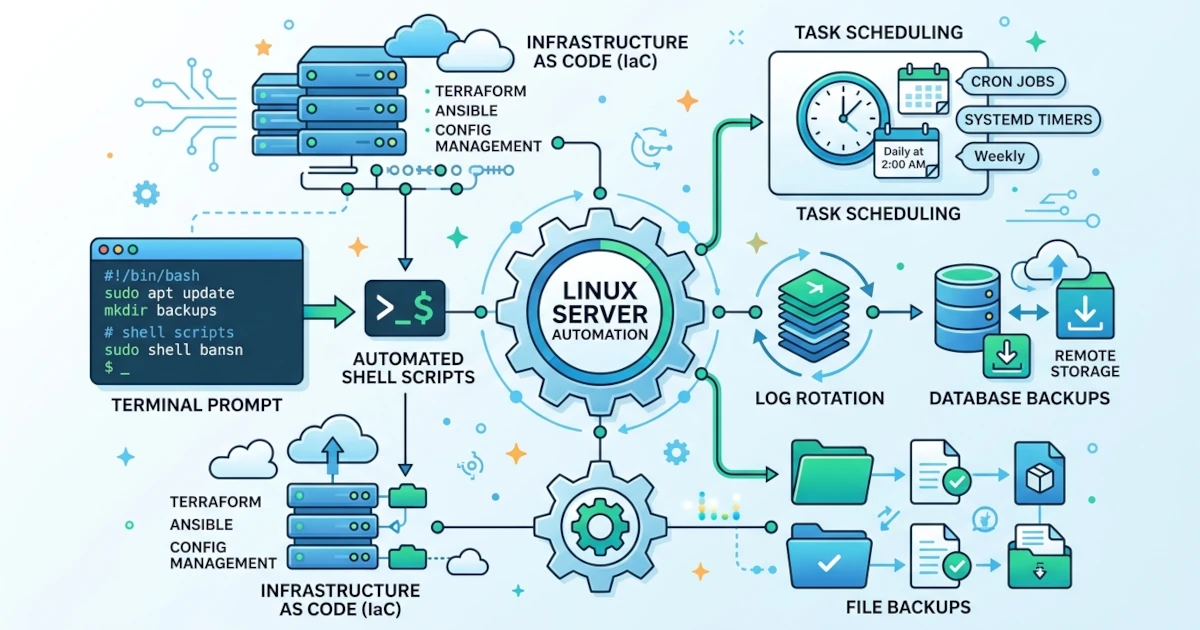
Chapter 34 closes Section VIII with a security checklist summarizing five layers of defense in depth since Chapter 30. Section IX, which begins with this chapter, takes a different direction. Instead of adding a new layer of defense, we highlight a habit that has actually been repeatedly practiced throughout this series without ever being discussed comprehensively: shell scripting for server automation. Chapter 5 introduced the systemd timer as a replacement for cron while promising to discuss it deeper here. Chapter 23 wrote a bash script automating backups for four databases simultaneously, complete with the set -euo pipefail line whose detailed explanation was intentionally deferred until this chapter. This chapter fulfills both promises while opening Section IX, the gateway to Infrastructure as Code that will continue to Ansible in Chapter 36 and cloud-init in Chapter 37.
The scenario is familiar to any Sysadmin who has managed a production server. A hurriedly written cleanup script runs twice simultaneously via cron because the previous execution hasn't finished, then deletes a file currently being written to by another process. A backup script "appears" successful even though one of its stages failed quietly, because not a single line stopped execution once an error occurred. Both incidents share the same root cause: the script was written as if always executed by a human supervising its output, even though its true purpose is to run unsupervised via cron or systemd timer.
We will start with a quick refresher on safe shell script conventions for automation, followed by writing three everyday administration scripts: configuration file backup, log cleanup, and server health check. The core section of this chapter dissects error handling and logging in depth, including trap and flock, which haven't been mentioned before. We close the chapter by scheduling all those scripts via cron and systemd timer, along with guidance on when to choose between the two.
35.1 Shell Scripting Review for Server Automation
The prerequisite series Linux 101 introduced shell scripting basics, so this section is not a full repetition. The focus is refreshing relevant conventions when a script is no longer run manually by a human in front of a terminal, but triggered automatically by cron or systemd timer without anyone supervising its output directly.
35.1.1 Safe Script Conventions for Automated Execution
Several habits that might feel optional when writing scripts for manual execution become mandatory once scheduled automatically. The shebang #!/bin/bash on the first line determines the interpreter used, and it's best to explicitly use bash instead of sh because features like arrays and [[ ]] used in this chapter are bash extensions, not part of the standard POSIX shell. Paths must be written absolutely, not relatively, because cron and systemd run scripts from a non-interactive shell that reads neither ~/.bashrc nor the PATH typically active in our interactive SSH session. Variables holding paths should always be quoted with double quotes like "$VAR", because paths containing spaces break into separate arguments without those quotes. Finally, exit codes hold important meaning in automation: 0 indicates success, non-zero indicates failure, and both systemd and cron rely on this number to detect whether a job truly succeeded, not on screen output that no one reads directly.
Practical Steps
- Create a directory to store all automation scripts written throughout this chapter.
sudo mkdir -p /usr/local/bin - Create a template file as the base for all scripts in the next section.
sudo nano /usr/local/bin/template.sh - Fill it with the following minimal structure.
The line#!/bin/bash # # Basic automation script template set -euo pipefail log() { echo "[$(date '+%F %T')] $*" } main() { log "Script started" log "Script completed" } main "$@"set -euo pipefailand thelog()function are intentionally left unexplained in detail here; both are fully dissected in Section 35.3. - Change file permissions to make it executable, then run it.
sudo chmod +x /usr/local/bin/template.sh
/usr/local/bin/template.sh
Verification and Troubleshooting
- Check the exit code after the script finishes running;
0indicates success.echo $? - A
Permission deniederror when running the script almost always means thechmod +xstep was missed. - If the script calls binaries installed in non-standard locations like
/snap/bin, do not rely on the defaultPATH. Write the full path inside the script, a habit that becomes highly relevant once entering cron scheduling in Section 35.4.1.
35.2 Scripts for Common Administrative Tasks
The following three scenarios are administration tasks most frequently rewritten by Sysadmins across various servers: non-database file backups, accumulated file cleanup, and periodic server health checks. All three use the template structure from Section 35.1.1 as a base.
35.2.1 Automated Configuration File and Directory Backup
Chapter 23 discussed database-specific backups via pg_dump, mysqldump, and similar tools. Configuration files in /etc and webroot directories require a different approach, as their content consists of regular files and directories better packaged with tar.
Practical Steps
- Create a configuration backup script.
sudo nano /usr/local/bin/backup-config.sh - Fill it with the following script, adjusting
SOURCE_DIRSto relevant directories on this server.
This retention pattern using#!/bin/bash set -euo pipefail BACKUP_DIR="/var/backups/config" SOURCE_DIRS=("/etc" "/var/www") RETENTION_DAYS=14 TIMESTAMP=$(date +%Y%m%d-%H%M%S) mkdir -p "$BACKUP_DIR" chmod 700 "$BACKUP_DIR" tar czf "$BACKUP_DIR/config-$TIMESTAMP.tar.gz" "${SOURCE_DIRS[@]}" chmod 600 "$BACKUP_DIR/config-$TIMESTAMP.tar.gz" find "$BACKUP_DIR" -type f -name "config-*.tar.gz" -mtime +"$RETENTION_DAYS" -delete echo "Backup completed: config-$TIMESTAMP.tar.gz"find -mtime +N -deleteis identical to what was practiced in Section 23.6.2, only applied totar.gzfiles instead of database dumps. The twochmodlines above are not a mere formality: the backed-up/etcincludes/etc/shadowcontaining password hashes for all users, making this backup archive as sensitive as the original files. Without explicit permission restrictions, newly createdtar.gzfiles follow the system's default umask, which on many servers yields644permissions (readable by all local users)—a clear violation of the least privilege principle discussed in Section 34.2. - Change file permissions to make it executable, then test-run it.
sudo chmod +x /usr/local/bin/backup-config.sh
sudo /usr/local/bin/backup-config.sh
Verification and Troubleshooting
- Ensure the new archive file appears with restricted permissions and correct content.
The permission column inls -lh /var/backups/config tar tzf /var/backups/config/config-*.tar.gz | headls -lhshould show-rw-------for thetar.gzfile, resulting fromchmod 600in the script. - GNU tar typically prints a warning line
tar: Removing leading '/' from member namesto the screen when packaging absolute paths like/etc. This isn't a failure sign, just notification that tar stores paths relatively inside the archive, a standard practice making restoration safer by preventing accidental overwrites of the original/etcwhen extracted. - An important field note regarding
tar: an exit code of1does not always mean the backup failed completely. GNU tar returns1when a file changes while being read (such as application logs written continuously by another process), whereas exit code2signifies a fatal failure like a missing source directory. Becauseset -etreats non-zero exit codes as failures, this can cause scripts to halt over non-fatal warnings. This point is dissected further in Section 35.3.1. - If
Permission deniedappears while reading/etccontents, run the script withsudoas in the practical step, as some contained files are intentionally restricted to root access.
35.2.2 Cleanup of Logs and Temporary Files
logrotate (discussed in Chapter 39) handles standard log rotation well, but not all files need rotation. Application temporary files, temporary export outputs, or custom logs unrecognized by logrotate require custom cleanup scripts.
Practical Steps
- Create a cleanup script supporting dry-run mode—a simulation mode displaying files to be deleted without actually deleting them.
sudo nano /usr/local/bin/cleanup-temp.sh - Fill it with the following script.
Argument#!/bin/bash set -euo pipefail TARGET_DIR="/var/log/myapp" MAX_AGE_DAYS=30 MODE="${1:-}" if [[ "$MODE" == "--dry-run" ]]; then echo "Dry-run mode, no files deleted" find "$TARGET_DIR" -type f -mtime +"$MAX_AGE_DAYS" -print else find "$TARGET_DIR" -type f -mtime +"$MAX_AGE_DAYS" -delete echo "Files older than $MAX_AGE_DAYS days in $TARGET_DIR deleted" fi$1is captured via"${1:-}"instead of bare"$1"becauseset -uinset -euo pipefailcauses bash to exit with an error when this argument is unset. The${1:-}syntax provides a default empty string if the argument is omitted. - Change file permissions to make it executable, then always test with dry-run first before running the actual deletion version.
sudo chmod +x /usr/local/bin/cleanup-temp.sh sudo /usr/local/bin/cleanup-temp.sh --dry-run - Once the file list in the dry-run step is confirmed correct, run without arguments to perform actual deletion.
sudo /usr/local/bin/cleanup-temp.sh
Verification and Troubleshooting
- The habit of running dry-run first is intentionally emphasized due to repeated field experience: many accidental production file deletion incidents originate from cleanup scripts executed directly without checking target lists beforehand.
- If the target directory doesn't exist,
findthrows aNo such file or directoryerror. EnsureTARGET_DIRpoints to an actual directory on this server before execution. - For generic cleanup needs in
/tmp, systemd provides a built-in mechanism viasystemd-tmpfilesconfigured in/etc/tmpfiles.d/. Custom scripts like above remain better suited when cleanup logic is application-specific, such as inspecting specific filename patterns before removal.
35.2.3 Simple Server Health Check
Before introducing modern monitoring tools like Netdata and Prometheus in Chapter 38, a simple health check script suffices to detect two common production server issues: nearly full disks and undetected stopped critical services.
Practical Steps
- Create a health check script.
sudo nano /usr/local/bin/health-check.sh - Fill it with the following script, adjusting the
SERVICESlist to match services running on this server.
The#!/bin/bash set -euo pipefail DISK_THRESHOLD=85 SERVICES=("nginx" "postgresql") check_disk() { local usage usage=$(df --output=pcent / | tail -1 | tr -dc '0-9') if (( usage >= DISK_THRESHOLD )); then logger -t health-check -p user.crit "Root disk at $usage%, above threshold $DISK_THRESHOLD%" echo "WARNING: root disk at $usage%" fi } check_services() { for svc in "${SERVICES[@]}"; do if ! systemctl is-active --quiet "$svc"; then logger -t health-check -p user.crit "Service $svc is inactive" echo "WARNING: service $svc is inactive" fi done } check_disk check_services echo "Health check completed"loggercommand sends messages directly to the systemd journal with the taghealth-checkand prioritycrit, ensuring check results remain recorded even if no human reads theechooutput directly. - Change file permissions to make it executable, then test-run it.
sudo chmod +x /usr/local/bin/health-check.sh
sudo /usr/local/bin/health-check.sh
Verification and Troubleshooting
- Search for entries sent by
loggerto the journal based on tag.journalctl -t health-check -n 20 - Test the service alert pathway by temporarily stopping one service from the
SERVICESlist, running the script again, and restarting the service post-test so the server isn't left down. - To be honest about script limitations: this script only logs critical conditions to the journal, rather than sending active email or chat notifications. True alerting pushing notifications to Sysadmins is covered using specialized tools in Section 38.4, as building reliable notification pathways (email, webhooks, or chat integrations) requires additional infrastructure outside a simple script.
- The two checks above are deliberately kept minimal for clarity. In production, similar functions expand to check memory via
free -mor system load viauptimeusing the exact samecheck_disk()andcheck_services()pattern: compare numbers to thresholds, then log vialoggerif exceeded.
35.3 Error Handling and Logging in Scripts
All three scripts in Section 35.2 used set -euo pipefail without deep explanation, following the practice used for database backup scripts in Section 23.6.2. This section dissects what happens behind that line, plus two equally critical habits for unsupervised scripts: trap and flock.
35.3.1 set -euo pipefail In Depth
The line set -euo pipefail combines three bash options, each closing a distinct loophole.
-eexits the script immediately when a command exits with a non-zero exit code. Without this option, bash defaults to executing the next line despite failure in an earlier command, as if nothing happened. Note that-ehas tricky exceptions: commands part ofif/whileconditions, part of&&or||lists, or preceded by!do not exit the script on failure, because bash assumes failure is explicitly handled. The lineif ! systemctl is-active --quiet "$svc"in Section 35.2.3 leverages this exception.-uexits the script when referencing an undefined variable. TheMONGO_USER: unbound variablemessage in Section 23.6.2 is a real example of this option working, and"${1:-}"in Section 35.2.2 is a safe way to capture optional arguments without triggering errors.-o pipefailchanges how bash evaluates pipeline success. Without this option, a pipeline's exit code is taken solely from the rightmost command, meaningmysqldump | gzipin Section 23.6.2 would be considered successful even ifmysqldumpfailed completely, as long asgzipsucceeded.pipefailcauses the pipeline exit code to reflect any command within it that failed, not just the last one.
Together, they enforce a fail fast principle—stopping execution as soon as something goes wrong, rather than continuing under false assumptions. This principle is crucial for unsupervised automated scripts where no human directly monitors stdout. One exception to keep in mind (such as tar exit code 1 in Section 35.2.1) is that some tools return non-zero codes for non-fatal warnings. Handle those explicitly rather than allowing set -e to terminate improperly—for instance, manually check $? and stop execution only when exceeding acceptable thresholds.
35.3.2 trap for Cleanup and Error Handling
trap is a bash builtin executing commands upon receiving specific signals. The two most relevant signals for automation are EXIT (triggered whenever the script stops for any reason) and ERR (triggered when a command fails while using -e from Section 35.3.1). Combining both ensures cleanup runs and error details are logged even during unexpected terminations.
Practical Steps
- Modify
template.shfrom Section 35.1.1 to add trap handling.sudo nano /usr/local/bin/template.sh - Add the following functions and traps directly beneath
set -euo pipefail.
VariableTMP_FILE=$(mktemp) cleanup() { log "Removing temporary file: $TMP_FILE" rm -f "$TMP_FILE" } trap cleanup EXIT error_handler() { logger -t template-script -p user.err "Failed at line $1 while executing: $2" } trap 'error_handler $LINENO "$BASH_COMMAND"' ERR$LINENOholds the line number where the error occurred, while$BASH_COMMANDholds the command executing at that moment. Both are valid only within theERRtrap. - Test the trap by inserting a command guaranteed to fail, such as
false, then run it.echo 'false' >> /usr/local/bin/template.sh sudo /usr/local/bin/template.sh; echo "exit code: $?"
Verification and Troubleshooting
- Ensure error messages log to the journal along with line numbers.
journalctl -t template-script -n 5 - Notice the log line
Removing temporary file: /tmp/tmp.xxxxxxxxxxprinted during the previous step's output. Copy that path to confirm the file was deleted despite script failure, proving theEXITtrap executed.
The actual path is randomized upon execution byls /tmp/tmp.xxxxxxxxxx 2>&1mktemp, so replacetmp.xxxxxxxxxxwith the exact filename shown in your output. - Remove the test line
falseafter testing, as it was inserted solely to trigger failure. - Avoid putting commands prone to failure inside the
cleanup()function itself. TheEXITtrap runs once; if a command inside it fails, cleanup can halt mid-way without secondary traps catching it.
35.3.3 Structured Logging and Preventing Overlapping Jobs with flock
These two practices are often omitted in rushed scripts, yet they are frequent root causes of production incidents. Plain echo logging disappears when run via cron without explicit redirection. Without lock files, overlapping scheduled executions create race conditions where multiple processes attempt writing to shared resources simultaneously.
Practical Steps
- Add a lock mechanism near the top of
health-check.shfrom Section 35.2.3, right belowset -euo pipefail.sudo nano /usr/local/bin/health-check.sh - Insert the following lines.
LOCK_FILE="/run/lock/health-check.lock"
exec 200>"$LOCK_FILE"
if ! flock -n 200; then
  echo "Another instance is running, exiting"
  exit 1
fi
exec 200>"$LOCK_FILE"opens the lock file using file descriptor200(chosen high to avoid standard descriptors0,1,2used by bash).flock -n 200attempts locking non-blockingly (-n); if another process holds the lock, it exits immediately with code1. The lock releases automatically upon script completion. - Test by launching the script twice simultaneously in separate terminals, or simulate with:
sudo /usr/local/bin/health-check.sh & sudo /usr/local/bin/health-check.sh
wait
Verification and Troubleshooting
- One execution should display
Another instance is running, exitingand exit with code1, while the other completes normally. - Apply this same
flockpattern tobackup-config.shandcleanup-temp.shfrom Section 35.2, especially on servers with large data volumes where backups might exceed scheduled intervals. - For consistent structured logging, combine
log()from Section 35.1.1 withloggeras inhealth-check.sh:echofor interactive terminal outputs,loggerfor journal persistence (which can be centralized via rsyslog in Chapter 39).
35.4 Scheduling Scripts with Cron and Systemd Timer
Chapters 5 and 23 practiced systemd timers directly for job scheduling. This section covers cron and closes with selection guidelines comparing both tools.
35.4.1 Cron and Crontab
Cron has served as the Unix job scheduling standard for decades, typically preinstalled on Ubuntu Server 26.04 LTS. crontab -e opens the editor for the logged-in user's schedule using five time fields followed by the command: minute, hour, day of month, month, and day of week. Fields accept numbers, * for wildcard, or steps like */15. Cron also supports shortcut strings like @reboot, @daily, and @hourly.
Practical Steps
- Install
cronif missing (safe to run if already installed):sudo apt install cron systemctl status cron - Open root's crontab.
health-check.shneeds root privileges sosystemctl is-active(Section 35.2.3) evaluates all system services and lockfiles in/run/lock(Section 35.3.3) are written without permissions errors.sudo crontab -e - Add the following entry to execute the health check every 15 minutes, redirecting output to a log file:
Redirection*/15 * * * * /usr/local/bin/health-check.sh >> /var/log/health-check-cron.log 2>&12>&1is necessary because cron runs without an interactive terminal. Unredirected output defaults to mailing local users via theMAILTOenvironment variable. Without an installed MTA like Postfix, unredirected output is lost quietly. - Save and verify entry registration:
sudo crontab -l
Verification and Troubleshooting
- Wait for the next execution interval, then inspect execution logs via the
CRONtag in systemd journal:journalctl -t CRON -n 20 - Inspect the log file defined in step 3:
cat /var/log/health-check-cron.log - Scripts succeeding in terminal but failing in cron usually stem from cron's limited
PATHvariable compared to interactive shell environments. Use absolute binary paths inside scripts as emphasized in Section 35.1.1. - System-wide scheduled tasks can also be defined in
/etc/cron.d/files using standard syntax plus an added username field before the command.
35.4.2 Choosing Between Cron and Systemd Timer
Both tools are valid; selection depends on functional requirements rather than absolute superiority.
| Aspect | Cron | Systemd Timer |
|---|---|---|
| Logging | Requires manual redirection or logger | Automatically routed to journalctl via service unit |
| Missed execution while powered off | Does not rerun unless paired with anacron | Persistent=true executes catch-up job upon boot |
| Service dependencies | Not supported natively | Supported via After=, Requires= (Section 5.4) |
| Configuration file count | Single line in crontab | Two unit files (.timer and .service) |
| Portability | Ubiquitous across Unix-like systems | Exclusive to systemd-based Linux systems |
On modern Ubuntu Server, systemd timers represent the sensible default for production jobs requiring execution guarantees post-downtime, such as database backups (Section 23.7). Cron remains ideal for quick automation tasks, third-party software documentation compliance, or legacy cross-platform deployments. Systemd timers also support relative execution directives like OnBootSec and OnUnitActiveSec, useful for running tasks fixed intervals after boot or prior runs rather than strict calendar schedules (OnCalendar, Section 5.3.1).
Verification and Troubleshooting
- Audit active scheduled jobs across both systems:
sudo crontab -l systemctl list-timers - Avoid duplicate scheduling across both cron and systemd timers for the same task. Duplications risk race conditions (Section 35.3.3), even when protected by
flock.
At this point, we have established a solid automation foundation for single-node management: safe scripting conventions, production-ready administrative task examples, reliable error handling, and robust execution scheduling. However, scaling limitations become apparent when managing multiple servers. Chapter 36 addresses multi-node administration through Ansible—an Infrastructure as Code tool managing configurations across server fleets from a central control node.