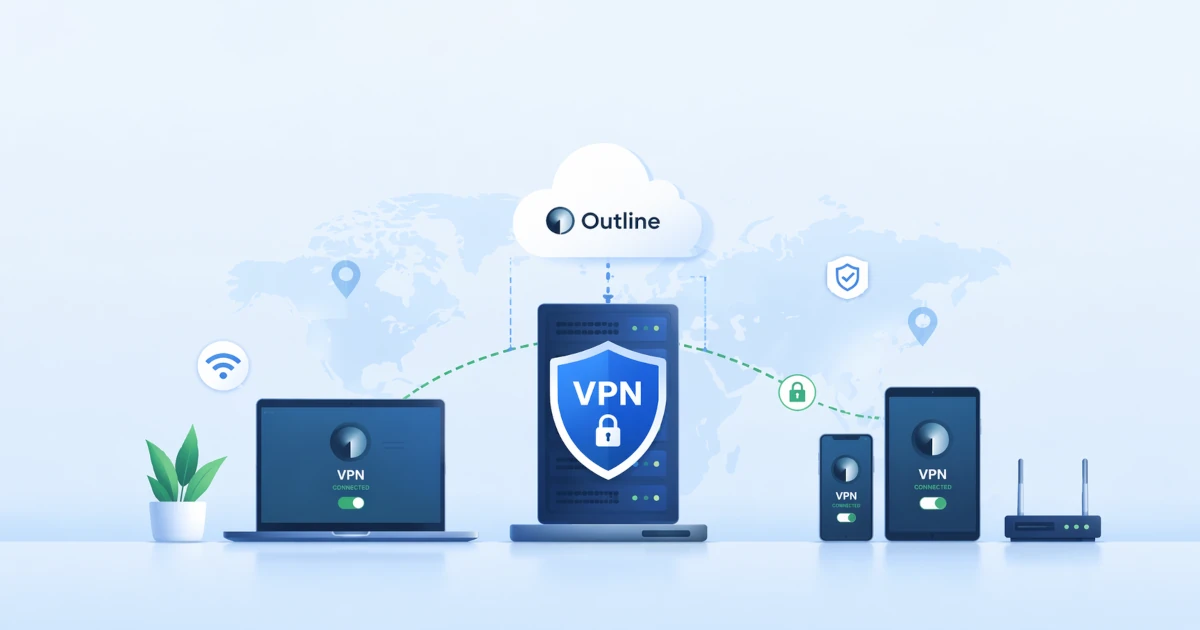
A VPN is a fundamental security layer that encrypts internet traffic, hides IP addresses, and protects sensitive data from digital surveillance, whether from internet service providers (ISPs), public Wi-Fi networks, or malicious actors. For sysadmins and infrastructure teams, having full control over your own VPN server means you don’t have to trust third parties with your connection logs, a zero-trust principle that is increasingly critical in modern security architectures.
However, not all VPN solutions are created equal. Many commercial VPN services are easily detected and blocked by deep packet inspection (DPI) systems or nation-state-level network censorship. This is where Outline VPN comes in as a more resilient, transparent, and easy-to-manage alternative.
Introduction to Outline VPN
Outline VPN is an open-source project developed by Jigsaw, a technology incubator under Alphabet Inc. (Google’s parent company). Outline is specifically designed to help individuals, journalists, and organizations run private VPN servers that are censorship-resistant and easy to share with trusted users.
Unlike traditional VPNs that use standard protocols such as OpenVPN or IPSec, which are easily identifiable and blockable. Outline is built on top of the Shadowsocks protocol, a proxy protocol designed to disguise VPN traffic as regular HTTPS connections. This makes Outline significantly harder to detect by advanced firewall systems.
Outline consists of two main components that work together:
- Outline Manager: A desktop application for managing the VPN server (creating, monitoring, and sharing access).
- Outline Client: A multi-platform application (Windows, macOS, Linux, Android, iOS) for end users to connect to the server.
Key Features of Outline VPN
Before proceeding with installation, let’s explore why Outline is worth considering for your private VPN infrastructure:
| Feature | Description | Benefit |
|---|---|---|
| 🔒 Strong Encryption | Uses modern encryption standards (AEAD) via Shadowsocks | Data remains secure in transit, even on untrusted networks |
| 🚫 Censorship Resistant | Protocol designed to evade detection by DPI and national firewalls | Stable access in heavily restricted environments |
| 👥 Flexible Access Management | Create unique access keys per user, set bandwidth limits | Granular control: revoke access anytime without restarting the server |
| ☁️ Multi-Cloud Support | Deploy on DigitalOcean, AWS, Google Cloud, or your own Linux server | Infrastructure flexibility, no vendor lock-in |
| 📱 Multi-Platform Client | Available for desktop & mobile (Windows, macOS, Linux, Android, iOS) | Consistent user experience across devices |
| 🛠️ Open Source & Transparent | Source code available on GitHub, auditable by the community | Trust through transparency, no hidden backdoors |
| ⚡ Lightweight Performance | Minimalist architecture with low server resource usage | Suitable for entry-level VPS (1 CPU / 1GB RAM) |
Outline also supports collaborative use cases: organizations like Code for Africa use it to provide open internet access to hundreds of journalists and activists across the continent.
How to Install Outline VPN Server
Below is a step-by-step guide to installing Outline VPN Server on your Linux infrastructure. We assume you have root access to an Ubuntu/Debian/CentOS server via SSH.
Prerequisites
- Linux server (VPS recommended) with at least 1 CPU, 1 GB RAM, 25 GB storage
- Ports 17993/tcp and 20161/tcp+udp open in the firewall
- Root access or sudo privileges
- Stable internet connection
Get $25 DigitalOcean Credit
Claim $25 CreditStep 1: Download and Run Outline Manager
- Visit getoutline.org/get-started
- Download Outline Manager for your operating system (Windows/macOS/Linux)
- Run the application, then click "Set up Outline anywhere" (option for custom server)
Step 2: Get Installation Command
Outline Manager will display a Docker-based installation command, for example:
sudo bash -c "$(wget -qO- https://raw.githubusercontent.com/Jigsaw-Code/outline-server/master/src/server_manager/install_scripts/install_server.sh)"Copy this command.
Step 3: Execute on Target Server
- Log in to the server via SSH.
- Paste and run the installation command from Step 2
- When prompted
Would you like to install Docker?, answerY - Wait for the process to complete. If successful, you will see:
CONGRATULATIONS! Your Outline server is up and running.
Step 4: Configure Firewall
Open the required ports so Outline can communicate properly:
# For UFW (Ubuntu/Debian)
ufw allow 17993/tcp
ufw allow 20161/tcp
ufw allow 20161/udp

# For firewalld (CentOS/RHEL)
firewall-cmd --permanent --add-port=17993/tcp
firewall-cmd --permanent --add-port=20161/tcp
firewall-cmd --permanent --add-port=20161/udp
firewall-cmd --reload
Step 5: Connect Outline Manager to Server
- Return to the Outline Manager application on your desktop
- Copy the
apiUrldisplayed in the server terminal (format: https://IP:17993/xxxx) - Paste the apiUrl into the input field in Outline Manager
- Click
DONE→ Your server is now registered and ready to be managed
Step 6: Create Access Key for Clients
- In Outline Manager, click
Add new key - Assign a descriptive name (e.g., admin-laptop, team-jakarta)
- Optional: set data limits to restrict bandwidth per key
- Click
COPY ACCESS KEYto copy the access key (format: ss://...)
💡 Each access key is unique and can be revoked at any time without affecting other users.
Testing Outline VPN
Once the server and access keys are ready, it’s time to verify the connection:
Test from Outline Client
- Download Outline Client from getoutline.org for your device
- Run the application → the copied access key should be detected automatically
- If not, click
Add server→ paste the access key →CONFIRM - Click the
CONNECTbutton - Verify the connection:
- Open ipleak.net or whatismyip.com
- Ensure the detected IP is your Outline server’s IP, not your local IP
- Test access to previously blocked sites (if applicable)
Performance & Stability Testing
# From client terminal, test latency and throughput
ping -c 4 8.8.8.8
curl -o /dev/null -s -w "Speed: %{speed_download} B/s\n" https://speedtest.net

# On the server, monitor resource usage
docker stats outline_server
Common Troubleshooting
| Issue | Solution |
|---|---|
| Client cannot connect | Ensure ports 20161/tcp+udp are open; check ufw status or firewall-cmd --list-all |
| Access key not detected | Re-copy the key; ensure no extra spaces; restart Outline Client |
| Server not visible in Manager | Verify apiUrl is correct; ensure port 17993/tcp is accessible from the internet |
| Slow connection | Check VPS bandwidth; consider server location closer to users; test with mtr for route diagnostics |
Conclusion
Building your own VPN server with Outline is not just a technical task—it’s a philosophical statement about digital autonomy. With Outline, you no longer rely on third-party privacy promises; you become the operator of your own security infrastructure. The guided GUI-based installation, lightweight Docker-based architecture, and granular access management make Outline suitable for a wide range of scenarios: from sysadmins securing remote team access, to journalists operating in restrictive environments, to individuals seeking to protect their family’s privacy.