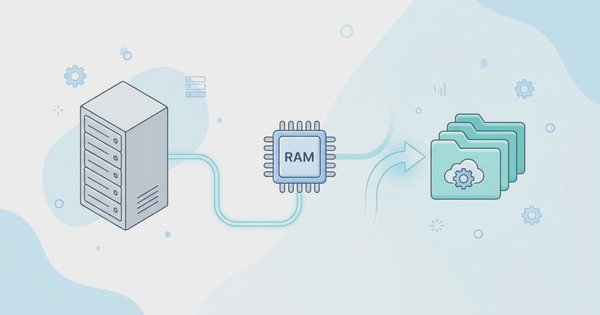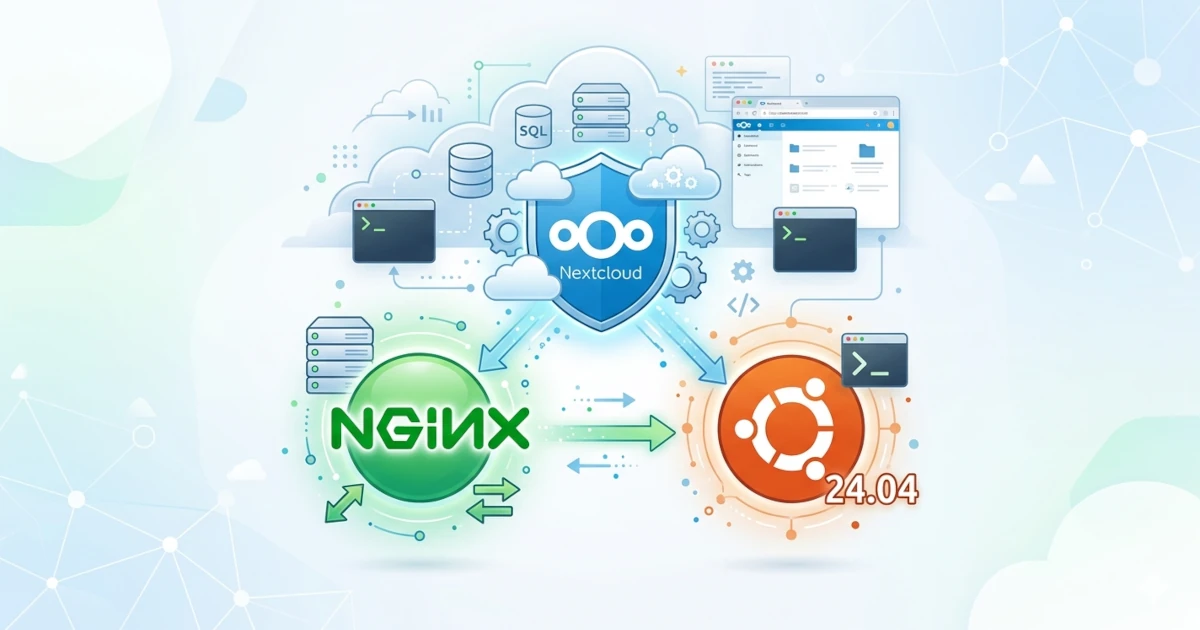
Layanan cloud storage seperti Google Drive dan Dropbox memang praktis, namun keduanya memiliki batasan yang sama, yaitu data Anda tersimpan di server milik pihak ketiga. Penyerahan kendali data ke pihak lain menjadi risiko yang tidak selalu dapat diterima bagi individu yang peduli terhadap privasi maupun organisasi yang terikat regulasi data seperti GDPR atau peraturan perlindungan data nasional.
Nextcloud adalah platform self-hosted cloud storage berbasis open-source yang memungkinkan Anda membangun layanan cloud storage sendiri di atas VPS atau server pribadi. Melalui Nextcloud, Anda mendapatkan kontrol penuh atas data terkait siapa yang mengaksesnya, lokasi penyimpanan, serta cara pengelolaannya. Selain fitur file sync, Nextcloud juga mendukung kalender, kontak, kolaborasi dokumen, dan ratusan aplikasi tambahan melalui App Store resminya.
Mengapa Nginx, Bukan Apache?
Apache HTTP Server adalah web server yang sudah terbukti, tetapi arsitekturnya berbasis thread-per-connection kurang efisien saat menghadapi banyak koneksi bersamaan. Nginx menggunakan model event-driven dan non-blocking I/O yang mampu menangani ribuan koneksi simultan dengan penggunaan memori yang jauh lebih hemat. Nginx merupakan pilihan yang lebih tepat dari sisi performa dan efisiensi resource untuk Nextcloud yang kerap melayani banyak klien secara bersamaan seperti desktop sync client, mobile app, dan WebDAV.
Prasyarat
- Server dengan OS Ubuntu 24.04 LTS (disarankan fresh install).
- Akses root atau user dengan hak sudo.
- Domain atau subdomain yang sudah diarahkan ke IP server, misalnya
nextcloud.example.com. DNS propagation harus selesai sebelum meminta sertifikat SSL. - Spesifikasi minimal 1 vCPU dan 1 GB RAM, namun disarankan 2 GB RAM untuk instalasi ringan.
Environment yang Digunakan
| Komponen | Versi / Detail |
|---|---|
| OS | Ubuntu 24.04 LTS |
| Web Server | Nginx (latest stable) |
| PHP | PHP 8.3-FPM |
| Database | MariaDB 10.11 |
| SSL | Let's Encrypt (Certbot) |
| Nextcloud | Versi terbaru (latest) |
| Cache | Redis |
Bonus Kredit €25 UpCloud
Klaim Bonus €251. Persiapan Sistem
Pastikan daftar paket dan sistem operasi sudah dalam kondisi terbaru sebelum menginstal paket apa pun. Langkah ini mencegah konflik dependency dan memastikan Anda mendapatkan security patch terkini.
Update dan Upgrade
sudo apt update
sudo apt upgrade -y
Instalasi Utility Pendukung
Instal beberapa utility dasar yang dibutuhkan selama proses instalasi. Beberapa di antaranya meliputi curl untuk mengunduh file, unzip untuk mengekstrak paket Nextcloud, dan gnupg untuk verifikasi paket dari repository eksternal.
sudo apt install -y curl unzip gnupg2 ca-certificates lsb-releaseKonfigurasi Firewall (UFW)
Buka port yang diperlukan jika UFW (Uncomplicated Firewall) aktif di server Anda. Port tersebut meliputi port 22 untuk SSH, 80 untuk HTTP yang dibutuhkan oleh Certbot saat validasi domain, serta 443 untuk HTTPS.
sudo ufw allow 22/tcp
sudo ufw allow 80/tcp
sudo ufw allow 443/tcp
sudo ufw enable
sudo ufw status
Instalasi LEMP Stack
LEMP stack adalah kombinasi software yang menjadi fondasi Nextcloud, yaitu Linux sebagai OS, Nginx sebagai web server, MariaDB sebagai database, dan PHP sebagai bahasa pemrograman runtime. Ketiga komponen terakhir diinstal secara terpisah agar konfigurasinya lebih terkontrol.
Instalasi Nginx
Instal Nginx dari repository resmi Ubuntu, lalu aktifkan service-nya agar otomatis berjalan saat server dinyalakan.
sudo apt install -y nginx
sudo systemctl enable nginx
sudo systemctl start nginx
Verifikasi Nginx berjalan:
sudo systemctl status nginxOutput seharusnya menunjukkan status active (running). Anda juga bisa membuka IP server di browser untuk memastikan halaman default Nginx tampil.
● nginx.service - A high performance web server and a reverse proxy server
     Loaded: loaded (/usr/lib/systemd/system/nginx.service; enabled; preset: enabled)
     Active: active (running) since Sat 2026-04-11 04:16:18 WIB; 34min ago
       Docs: man:nginx(8)
   Main PID: 1737 (nginx)
      Tasks: 3 (limit: 2315)
     Memory: 2.4M (peak: 5.2M)
        CPU: 28ms
     CGroup: /system.slice/nginx.service
             ├─1737 "nginx: master process /usr/sbin/nginx -g daemon on; master_process on;"
             ├─1740 "nginx: worker process"
             └─1741 "nginx: worker process"

Apr 11 04:16:18 ubuntu-server systemd[1]: Starting nginx.service - A high performance web server and a reverse proxy server.
Instalasi MariaDB
MariaDB adalah fork dari MySQL yang di-maintain secara aktif oleh komunitas open-source. Ubuntu 24.04 menyertakan MariaDB 10.11 di repository resminya.
sudo apt install -y mariadb-server
sudo systemctl enable mariadb
sudo systemctl start mariadb
Pengamanan Instalasi MariaDB
Jalankan skrip mysql_secure_installation untuk mengamankan instalasi MariaDB, seperti pengaturan password root, penghapusan user anonim, penonaktifan remote root login, serta penghapusan database test.
sudo mysql_secure_installationJawab setiap prompt sebagai berikut:
Enter current password for root (enter for none): [tekan Enter]
Switch to unix_socket authentication [Y/n]: n
Change the root password? [Y/n]: Y
New password: [masukkan password kuat]
Re-enter new password: [ulangi password]
Remove anonymous users? [Y/n]: Y
Disallow root login remotely? [Y/n]: Y
Remove test database and access to it? [Y/n]: Y
Reload privilege tables now? [Y/n]: Y
Instalasi PHP 8.3-FPM dan Extension
Nextcloud membutuhkan sejumlah PHP extension agar semua fiturnya dapat berfungsi dengan baik. Instal PHP 8.3 beserta seluruh extension yang diperlukan dalam satu perintah.
sudo apt install -y \
  php8.3 \
  php8.3-fpm \
  php8.3-common \
  php8.3-cli \
  php8.3-gd \
  php8.3-mysql \
  php8.3-curl \
  php8.3-xml \
  php8.3-zip \
  php8.3-mbstring \
  php8.3-bz2 \
  php8.3-intl \
  php8.3-bcmath \
  php8.3-gmp \
  php8.3-imagick \
  php8.3-redis \
  php8.3-apcu
Verifikasi versi PHP yang terinstal:
php -vContoh output:
PHP 8.3.6 (cli) (built: Mar 20 2026 02:32:55) (NTS)
Copyright (c) The PHP Group
Zend Engine v4.3.6, Copyright (c) Zend Technologies
    with Zend OPcache v8.3.6, Copyright (c), by Zend Technologies
Konfigurasi php.ini untuk Nextcloud
Buka file konfigurasi PHP-FPM dan sesuaikan beberapa nilai penting agar Nextcloud dapat berjalan dengan optimal, terutama untuk upload file besar.
sudo nano /etc/php/8.3/fpm/php.iniCari dan ubah nilai-nilai berikut (gunakan Ctrl+W untuk pencarian di nano):
memory_limit = 512M
upload_max_filesize = 100M
post_max_size = 100M
max_execution_time = 360
date.timezone = Asia/Jakarta
Aktifkan OPcache yang sangat disarankan oleh Nextcloud:
opcache.enable = 1
opcache.memory_consumption = 64
opcache.interned_strings_buffer = 64
opcache.max_accelerated_files = 10000
opcache.save_comments = 1
opcache.revalidate_freq = 1
Muat ulang PHP-FPM setelah perubahan konfigurasi:
sudo systemctl restart php8.3-fpm
sudo systemctl enable php8.3-fpm
Verifikasi PHP-FPM berjalan:
sudo systemctl status php8.3-fpmContoh output:
● php8.3-fpm.service - The PHP 8.3 FastCGI Process Manager
     Loaded: loaded (/usr/lib/systemd/system/php8.3-fpm.service; enabled; preset: enabled)
     Active: active (running) since Sat 2026-04-11 04:47:38 WIB; 5min ago
       Docs: man:php-fpm8.3(8)
    Process: 16548 ExecStartPost=/usr/lib/php/php-fpm-socket-helper install /run/php/php-fpm.sock /etc/php/8.3/fpm/pool.d/www.conf 83 (code=exited, status=0/SUCCESS)
   Main PID: 16545 (php-fpm8.3)
     Status: "Processes active: 0, idle: 2, Requests: 0, slow: 0, Traffic: 0req/sec"
      Tasks: 3 (limit: 2315)
     Memory: 26.2M (peak: 26.9M)
        CPU: 93ms
     CGroup: /system.slice/php8.3-fpm.service
             ├─16545 "php-fpm: master process (/etc/php/8.3/fpm/php-fpm.conf)"
             ├─16546 "php-fpm: pool www"
             └─16547 "php-fpm: pool www"

Apr 11 04:47:38 ubuntu-server systemd[1]: Starting php8.3-fpm.service - The PHP 8.3 FastCGI Process Manager.
2. Konfigurasi Database
Nextcloud membutuhkan database tersendiri dengan user yang memiliki hak akses penuh (full privileges) pada database tersebut. Prinsip least privilege ini penting untuk keamanan agar jika akun database Nextcloud terkompromi, dampaknya terbatas hanya pada database Nextcloud saja.
Login ke MariaDB sebagai root:
sudo mariadb -u rootJalankan perintah berikut secara berurutan di dalam MariaDB shell:
Membuat Database
CREATE DATABASE nextcloud CHARACTER SET utf8mb4 COLLATE utf8mb4_general_ci;Membuat User Database
Ganti password_kuat_anda dengan password yang kompleks. Catat password ini karena akan dibutuhkan saat setup Nextcloud via browser.
CREATE USER 'nextcloud'@'localhost' IDENTIFIED BY 'password_kuat_anda';Mengatur Hak Akses
GRANT ALL PRIVILEGES ON nextcloud.* TO 'nextcloud'@'localhost';
FLUSH PRIVILEGES;
EXIT;
Verifikasi database berhasil dibuat:
sudo mariadb -u root -e "SHOW DATABASES;"Pastikan database nextcloud muncul dalam daftar.
3. Download dan Konfigurasi Nextcloud
Download Paket Nextcloud
Unduh paket Nextcloud versi terbaru langsung dari server resmi Nextcloud. Penggunaan URL latest.zip memastikan Anda selalu mendapatkan versi stabil terbaru tanpa perlu mengecek nomor versi secara manual.
wget https://download.nextcloud.com/server/releases/latest.zip -O /tmp/nextcloud.zipEkstraksi ke Direktori Web Root
Ekstrak paket ke direktori /var/www/. Nginx akan dikonfigurasi untuk menjadikan /var/www/nextcloud sebagai document root.
sudo unzip /tmp/nextcloud.zip -d /var/www/
sudo mkdir -p /var/www/nextcloud/data
Direktori data adalah tempat semua file pengguna Nextcloud akan disimpan. Penempatan di dalam document root sudah aman karena Nginx dikonfigurasi untuk memblokir akses langsung ke direktori tersebut.
Pengaturan Permissions
Ubah ownership seluruh direktori Nextcloud ke user www-data, yaitu user sistem yang digunakan oleh Nginx dan PHP-FPM untuk mengakses file.
sudo chown -R www-data:www-data /var/www/nextcloud
sudo chmod -R 750 /var/www/nextcloud
4. Konfigurasi Nginx Server Block
Konfigurasi Nginx untuk Nextcloud lebih kompleks dibandingkan konfigurasi web server biasa karena harus menangani WebDAV, pretty URLs, proteksi direktori sensitif, security headers, dan optimasi untuk upload file besar.
Membuat File Konfigurasi Server Block
Buat file konfigurasi baru. Ganti nextcloud.example.com dengan nama domain atau subdomain Anda yang sebenarnya.
sudo nano /etc/nginx/sites-available/nextcloud.confKonfigurasi Awal (Sebelum SSL)
Mulai dengan konfigurasi HTTP sederhana. Konfigurasi ini dibutuhkan terlebih dahulu agar Certbot dapat melakukan validasi domain via HTTP sebelum menerbitkan sertifikat SSL.
upstream php-handler {
    server unix:/run/php/php8.3-fpm.sock;
}

map $arg_v $asset_immutable {
    ""      "";
    default ", immutable";
}

server {
    listen 80;
    listen [::]:80;
    server_name nextcloud.example.com;

    server_tokens off;

    root /var/www/nextcloud;

    location /.well-known/acme-challenge {
        root /var/www/nextcloud;
        try_files $uri $uri/ =404;
    }
}
Aktifkan konfigurasi dan uji syntax Nginx:
sudo ln -s /etc/nginx/sites-available/nextcloud.conf /etc/nginx/sites-enabled/
sudo nginx -t
sudo systemctl reload nginx
Lanjut ke langkah instalasi SSL jika nginx -t menampilkan syntax is ok dan test is successful.
nginx: the configuration file /etc/nginx/nginx.conf syntax is ok
nginx: configuration file /etc/nginx/nginx.conf test is successful
5. Instalasi SSL dengan Let's Encrypt
Let's Encrypt adalah Certificate Authority (CA) nonprofit yang menerbitkan sertifikat SSL/TLS secara gratis. Certbot merupakan tool resmi untuk mengotomasi proses request, verifikasi, dan pembaruan sertifikat. Akses HTTPS bukan hanya mengenai keamanan, melainkan juga digunakan Google sebagai salah satu faktor ranking SEO.
Instalasi Certbot
sudo apt install -y certbot python3-certbot-nginxRequest Sertifikat SSL
Ganti nextcloud.example.com dengan domain Anda, serta [email protected] dengan alamat email valid untuk notifikasi kedaluwarsa sertifikat.
sudo certbot --non-interactive \
  --agree-tos \
  --no-eff-email \
  -m [email protected] \
  --nginx \
  -d nextcloud.example.com
Certbot akan memvalidasi kepemilikan domain melalui protokol ACME, mengunduh sertifikat, dan menyimpannya di /etc/letsencrypt/live/nextcloud.example.com/.
Verifikasi Auto-Renewal
Certbot secara otomatis menambahkan systemd timer untuk memperbarui sertifikat sebelum kedaluwarsa. Verifikasi timer aktif melalui perintah berikut:
sudo systemctl status certbot.timerUji proses renewal secara manual (dry-run) untuk memastikan sistem berfungsi tanpa benar-benar melakukan pembaruan:
sudo certbot renew --dry-run6. Konfigurasi Nginx Final dengan SSL
Perbarui konfigurasi Nginx dengan konfigurasi penuh setelah sertifikat SSL berhasil di-generate. Konfigurasi ini mencakup HTTPS, security headers, gzip compression, dan seluruh aturan routing yang dibutuhkan Nextcloud.
Buka kembali file konfigurasi:
sudo nano /etc/nginx/sites-available/nextcloud.confGanti seluruh isinya dengan konfigurasi berikut:
upstream php-handler {
    server unix:/run/php/php8.3-fpm.sock;
}

map $arg_v $asset_immutable {
    ""      "";
    default ", immutable";
}

# Redirect HTTP ke HTTPS
server {
    listen 80;
    listen [::]:80;
    server_name nextcloud.example.com;

    server_tokens off;

    return 301 https://$server_name$request_uri;
}

server {
    listen 443 ssl http2;
    listen [::]:443 ssl http2;
    server_name nextcloud.example.com;

    # Path ke direktori Nextcloud
    root /var/www/nextcloud;

    # Sertifikat SSL dari Let's Encrypt
    ssl_certificate     /etc/letsencrypt/live/nextcloud.example.com/fullchain.pem;
    ssl_certificate_key /etc/letsencrypt/live/nextcloud.example.com/privkey.pem;

    include /etc/letsencrypt/options-ssl-nginx.conf;
    ssl_dhparam /etc/letsencrypt/ssl-dhparams.pem;

    # Sembunyikan versi Nginx
    server_tokens off;

    # Ukuran maksimal upload dan timeout
    client_max_body_size 100M;
    client_body_timeout 300s;
    fastcgi_buffers 64 4K;
    client_body_buffer_size 512k;

    # Aktifkan gzip compression
    gzip on;
    gzip_vary on;
    gzip_comp_level 4;
    gzip_min_length 256;
    gzip_proxied expired no-cache no-store private no_last_modified no_etag auth;
    gzip_types
        application/atom+xml text/javascript application/javascript
        application/json application/ld+json application/manifest+json
        application/rss+xml application/xhtml+xml application/xml
        font/opentype image/bmp image/svg+xml image/x-icon
        text/cache-manifest text/css text/plain text/vcard
        text/vnd.rim.location.xloc text/vtt text/x-component
        text/x-cross-domain-policy;

    # MIME types tambahan untuk Nextcloud
    include mime.types;
    types {
        text/javascript mjs;
    }

    # Security headers
    add_header Referrer-Policy                   "no-referrer"       always;
    add_header X-Content-Type-Options            "nosniff"           always;
    add_header X-Frame-Options                   "SAMEORIGIN"        always;
    add_header X-Permitted-Cross-Domain-Policies "none"              always;
    add_header X-Robots-Tag                      "noindex, nofollow" always;
    fastcgi_hide_header X-Powered-By;

    index index.php index.html /index.php$request_uri;

    # Robots.txt
    location = /robots.txt {
        allow all;
        log_not_found off;
        access_log off;
    }

    # Tangani /.well-known untuk WebDAV dan ACME challenge
    location ^~ /.well-known {
        location = /.well-known/carddav { return 301 /remote.php/dav/; }
        location = /.well-known/caldav  { return 301 /remote.php/dav/; }

        location /.well-known/acme-challenge    { try_files $uri $uri/ =404; }
        location /.well-known/pki-validation    { try_files $uri $uri/ =404; }

        return 301 /index.php$request_uri;
    }

    # Tangani Microsoft DAV clients
    location = / {
        if ( $http_user_agent ~ ^DavClnt ) {
            return 302 /remote.php/webdav/$is_args$args;
        }
    }

    # Blokir akses ke direktori dan file sensitif
    location ~ ^/(?:build|tests|config|lib|3rdparty|templates|data)(?:$|/)  { return 404; }
    location ~ ^/(?:\.|autotest|occ|issue|indie|db_|console)                { return 404; }

    # Pass request PHP ke PHP-FPM
    location ~ \.php(?:$|/) {
        rewrite ^/(?!index|remote|public|cron|status|ocs\/v[12]|ocs-provider\/.+|core\/ajax\/update|updater\/.+|.+\/richdocumentscode(_arm64)?\/proxy) /index.php$request_uri;

        fastcgi_split_path_info ^(.+?\.php)(/.*)$;
        set $path_info $fastcgi_path_info;

        try_files $fastcgi_script_name =404;

        include fastcgi_params;
        fastcgi_pass php-handler;

        fastcgi_param SCRIPT_FILENAME         $document_root$fastcgi_script_name;
        fastcgi_param PATH_INFO               $path_info;
        fastcgi_param HTTPS                   on;
        fastcgi_param modHeadersAvailable     true;
        fastcgi_param front_controller_active true;

        fastcgi_intercept_errors on;
        fastcgi_request_buffering on;
        fastcgi_max_temp_file_size 0;
    }

    # Static assets — cache agresif dengan immutable flag
    location ~ \.(?:css|js|mjs|svg|gif|ico|jpg|png|webp|wasm|tflite|map|ogg|flac|mp4|webm)$ {
        try_files $uri /index.php$request_uri;
        add_header Cache-Control "public, max-age=15778463$asset_immutable";
        add_header Referrer-Policy                   "no-referrer"       always;
        add_header X-Content-Type-Options            "nosniff"           always;
        add_header X-Frame-Options                   "SAMEORIGIN"        always;
        add_header X-Permitted-Cross-Domain-Policies "none"              always;
        add_header X-Robots-Tag                      "noindex, nofollow" always;
        access_log off;
    }

    # Font files
    location ~ \.(otf|woff2?)$ {
        try_files $uri /index.php$request_uri;
        expires 7d;
        access_log off;
    }

    # Redirect /remote ke /remote.php
    location /remote {
        return 301 /remote.php$request_uri;
    }

    location / {
        try_files $uri $uri/ /index.php$request_uri;
    }

    access_log /var/log/nginx/nextcloud.example.com_access.log;
    error_log /var/log/nginx/nextcloud.example.com_error.log;
}
Uji syntax Nginx dan muat ulang:
sudo nginx -t
sudo systemctl reload nginx
Pastikan tidak ada error sebelum melanjutkan. Error paling umum biasanya berupa typo atau path sertifikat SSL yang salah.
7. Setup Nextcloud via Web Browser
Langkah terakhir instalasi dilakukan melalui browser menggunakan Installation Wizard bawaan Nextcloud setelah semua komponen terpasang dan dikonfigurasi.
Akses Domain di Browser
Buka browser dan navigasi ke domain Anda: https://nextcloud.example.com. Halaman instalasi Nextcloud yang meminta beberapa informasi awal akan menyambut Anda jika semua konfigurasi sudah benar.
Isi Form Instalasi
Lengkapi form dengan informasi berikut:
| Field | Nilai |
|---|---|
| Username (Admin) | Pilih username admin Nextcloud Anda |
| Password (Admin) | Password kuat untuk akun admin |
| Data folder | /var/www/nextcloud/data |
| Database host | localhost |
| Database name | nextcloud |
| Database user | nextcloud |
| Database password | Password yang Anda buat |
Klik tombol Install. Proses instalasi biasanya memakan waktu 1–3 menit tergantung spesifikasi server. Nextcloud akan membuat tabel database, menginstal aplikasi default, dan menginisialisasi konfigurasi.
Instalasi Recommended Apps (Opsional)
Nextcloud akan menawarkan pilihan untuk menginstal recommended apps seperti Calendar, Contacts, Mail, dan Talk setelah instalasi selesai. Anda bisa klik Install recommended apps atau Skip untuk menginstalnya nanti melalui menu Apps di dashboard.
Anda sekarang akan diarahkan ke Dashboard Nextcloud. Instalasi dasar telah berhasil dilakukan.
8. Konfigurasi Pasca-Instalasi (Disarankan)
Instalasi dasar sudah selesai, tetapi ada beberapa konfigurasi tambahan yang sangat disarankan untuk memastikan Nextcloud berjalan dengan performa optimal, andal untuk penggunaan jangka panjang, serta bebas dari peringatan pada halaman Administration settings → Overview.
Mengaktifkan Memory Caching dengan Redis
Secara default, Nextcloud tidak menggunakan memory cache sehingga menyebabkan banyak operasi database berulang yang tidak perlu. Redis adalah in-memory data store yang dapat digunakan sebagai local cache dan distributed lock oleh Nextcloud untuk meningkatkan performa secara signifikan.
Instal Redis dan PHP extension-nya:
sudo apt install -y redis-server php8.3-redis
sudo systemctl enable redis-server
sudo systemctl start redis-server
Edit file konfigurasi Nextcloud config.php:
sudo nano /var/www/nextcloud/config/config.phpTambahkan konfigurasi berikut di dalam array $CONFIG, sebelum baris penutup );:
  'memcache.local' => '\OC\Memcache\Redis',
  'memcache.locking' => '\OC\Memcache\Redis',
  'redis' => [
    'host' => '127.0.0.1',
    'port' => 6379,
    'timeout' => 0.0,
  ],
Muat ulang PHP-FPM agar perubahan diterapkan:
sudo systemctl restart php8.3-fpmMengatur Cron Job untuk Background Jobs
Nextcloud menggunakan background jobs untuk berbagai tugas pemeliharaan seperti pembersihan file sementara, pengiriman notifikasi, dan pembaruan metadata. Penggunaan AJAX sebagai metode default tidak ideal untuk server produksi.
Ubah pengaturan ke Cron sebagai metode background jobs melalui perintah berikut:
sudo -u www-data php /var/www/nextcloud/occ background:cronKemudian tambahkan cron job untuk user www-data:
sudo crontab -u www-data -eTambahkan baris berikut di akhir file agar background jobs berjalan setiap 5 menit:
*/5 * * * * /usr/bin/php -f /var/www/nextcloud/cron.php --no-interaction >> /tmp/nc-cron.log 2>&1Mengatur Trusted Domains (Jika Diperlukan)
Tambahkan domain Anda ke daftar trusted domains di config.php jika Nextcloud menampilkan error Access through untrusted domain:
sudo -u www-data php /var/www/nextcloud/occ config:system:set \
  trusted_domains 1 --value=nextcloud.example.com
Menjaga Nextcloud Tetap Up-to-Date
Nextcloud merilis pembaruan rutin untuk perbaikan bug dan security patch. Jalankan perintah berikut via command line:
sudo -u www-data php /var/www/nextcloud/updater/updater.phar9. Troubleshooting Umum
502 Bad Gateway
Error ini biasanya disebabkan oleh ketidakmampuan Nginx untuk berkomunikasi dengan PHP-FPM, sering kali karena socket path yang salah pada konfigurasi Nginx.
Periksa socket path PHP-FPM yang aktif:
cat /etc/php/8.3/fpm/pool.d/www.conf | grep "^listen"Pastikan nilainya sesuai dengan yang ada di upstream php-handler pada konfigurasi Nginx. Periksa juga apakah PHP-FPM berjalan melalui perintah berikut:
sudo systemctl status php8.3-fpm403 Forbidden
Periksa ownership direktori Nextcloud. Nginx dan PHP-FPM harus berjalan sebagai user www-data:
ls -la /var/www/ | grep nextcloud
sudo chown -R www-data:www-data /var/www/nextcloud
File Upload Gagal di Atas 10 MB
Pastikan client_max_body_size pada konfigurasi Nginx serta upload_max_filesize dan post_max_size di php.inisudah diatur ke nilai yang cukup besar, misalnya 100M.
Cek Log untuk Diagnosis
Gunakan perintah berikut untuk memantau log secara langsung:
# Log Nginx
sudo tail -f /var/log/nginx/nextcloud.example.com_error.log

# Log Nextcloud
sudo tail -f /var/www/nextcloud/data/nextcloud.log

# Log PHP-FPM
sudo tail -f /var/log/php8.3-fpm.log
Kesimpulan
Melalui langkah-langkah di atas, Anda telah berhasil membangun infrastruktur self-hosted cloud storage yang aman dan berperforma tinggi menggunakan Nextcloud di Ubuntu 24.04 LTS. Penggunaan stack LEMP yang dikombinasikan dengan Redis sebagai memory caching memastikan layanan tetap responsif meskipun menangani banyak data.
Anda kini memiliki kendali penuh atas privasi data tanpa ketergantungan pada pihak ketiga. Ke depannya, Anda dapat memperluas fungsionalitas server ini dengan memasang berbagai aplikasi tambahan dari App Store resmi Nextcloud untuk mendukung produktivitas dan kolaborasi tim.